Sometime the font display look sluggish on display.
Especially when we tried to run some X based GUI from remote.
There are possibly many other way to make it look nicer.
But this time I just want to make use of anti-aliasing for font .
and using KDE Control Center to change it.
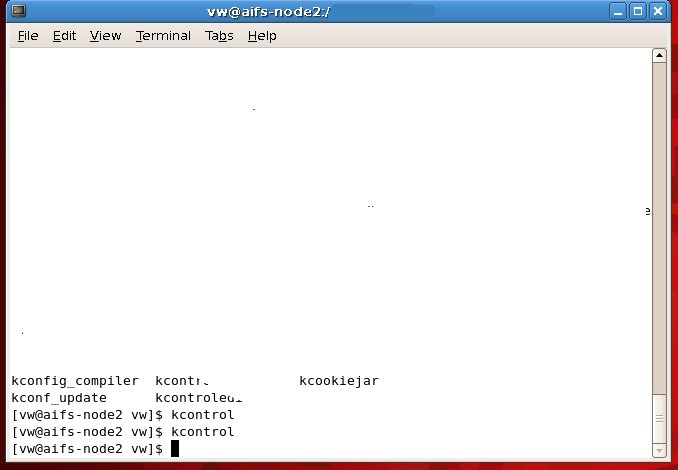
okay.. using terminal , just type
kcontrol
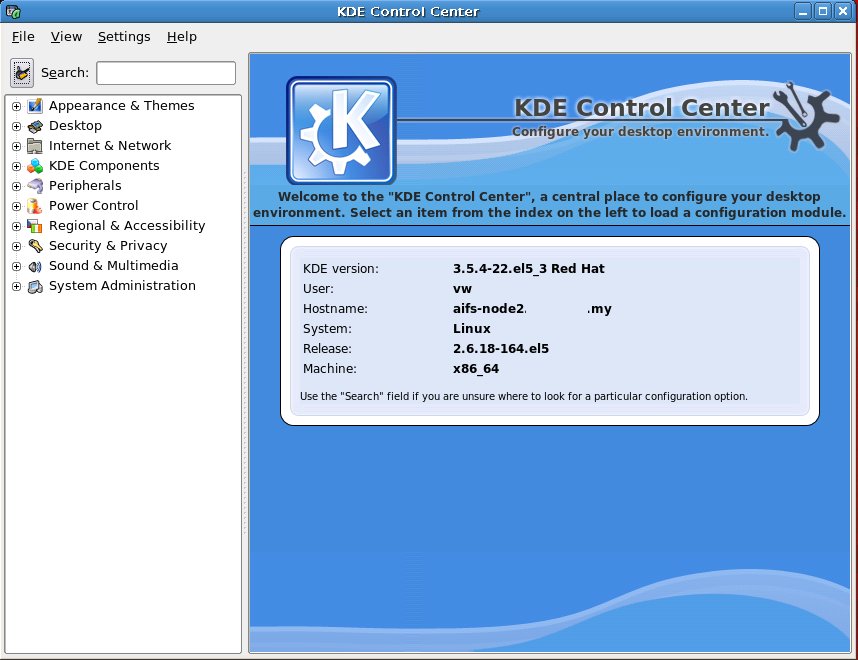
then look for “Appearance & Themes -> Fonts”
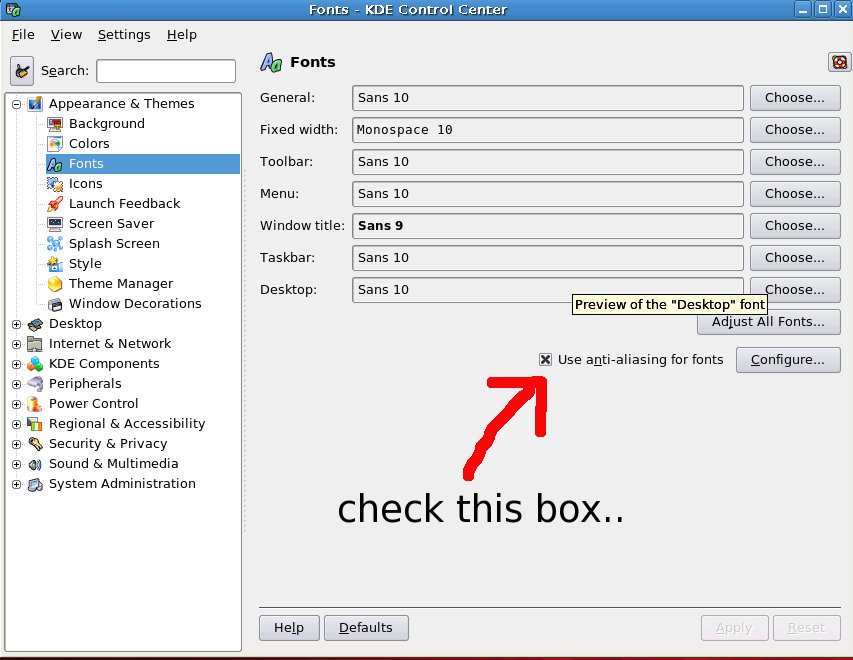
check the box “Use anti-aliasing for fonts”.
And that’s it.
you might need to restart the X11 server for once.
p/s : I am not quite sure how to do this in Gnome session.
but once changed using this “kcontrol” , the gnome session also affected and improved too..